Admin guide
This guide is for platform administrators. A user is an administrator when
their groups claim (groups by default) contains one of the groups configured
in the gateway’s ADMIN_GROUPS (gateway.adminGroups in the Helm chart), or
when they signed in through break-glass. Administrators see the
Admin section of the dashboard sidebar.
All workspaces
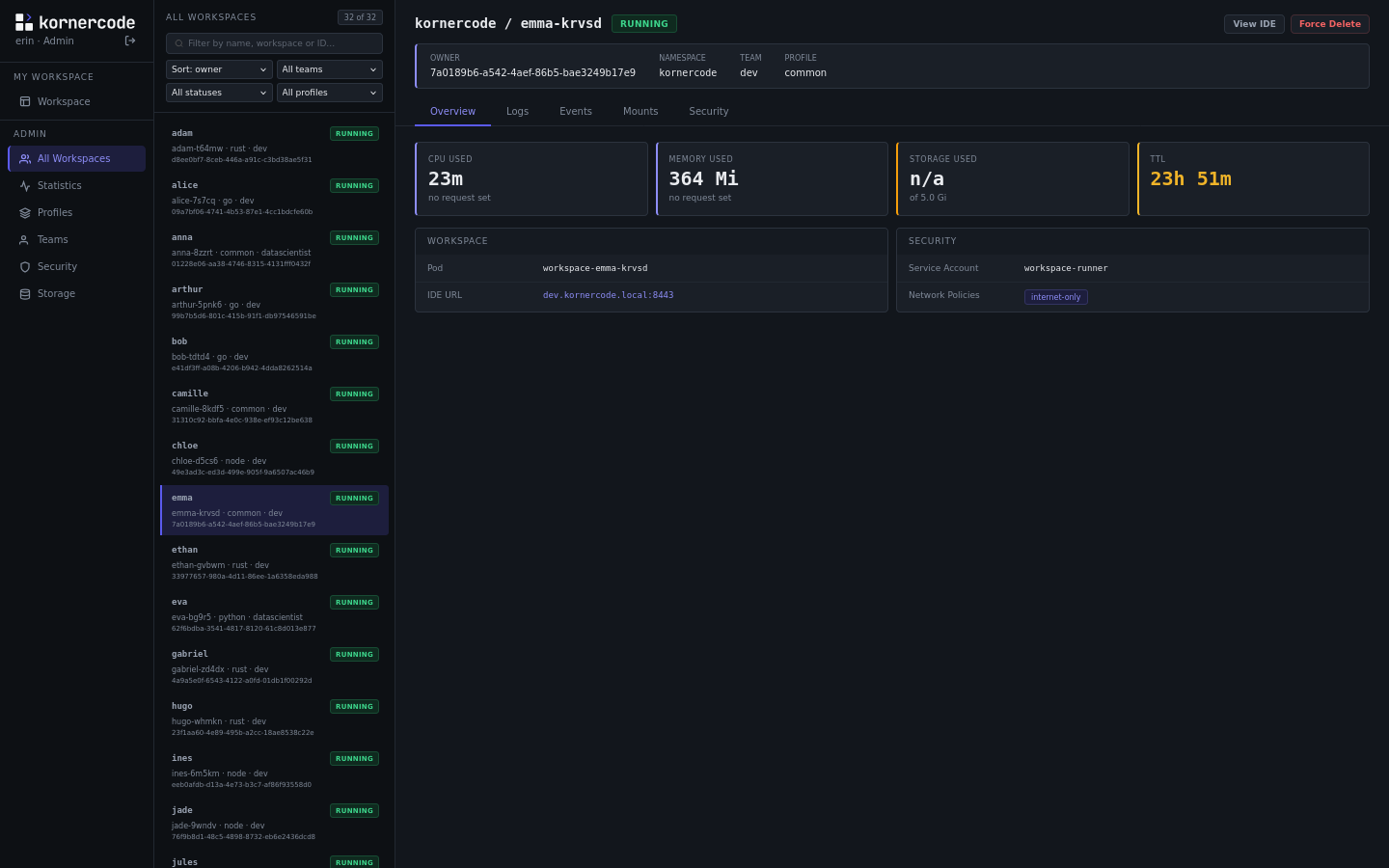
The list shows every workspace, with filters by team, status and profile, and sorting by owner, age, status or team. An UPDATE badge marks workspaces running an older configuration than their profile, team or security profile now produce (see restarts).
Selecting a workspace shows the same tabs its owner sees (overview, logs, events, mounts, security) plus:
- View IDE: opens the owner’s IDE in a new tab. Access is re-checked on
every request and recorded as an
AdminOpenedIDEevent on the workspace, which its owner sees. - Force Delete: deletes the workspace. The owner’s home volume is kept.
Statistics
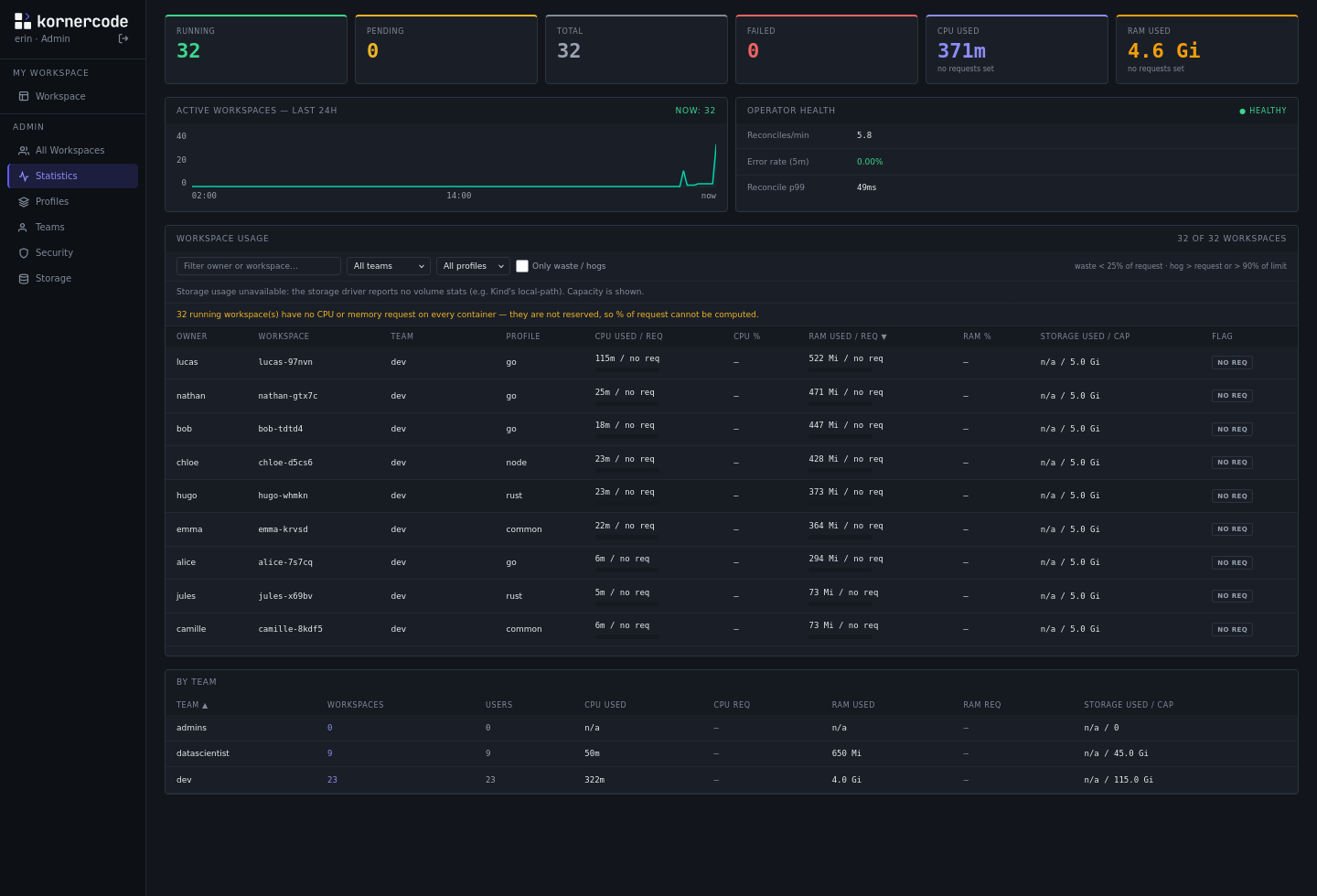
Tiles: workspaces by state, and the CPU and memory used against what is reserved.
Active workspaces, last 24 hours: one sample every 10 minutes; hover for the exact count at a time.
Operator health: reconcile rate, error rate and 99th-percentile reconcile time.
Workspace usage: one row per workspace with CPU, memory and storage used against requested, sortable and filterable. Flags point at workspaces worth a look:
Flag Meaning wasteUses less than 25 % of what it reserves hogUses more than it reserves, or more than 90 % of its limit no reqSome container sets no request, so nothing is reserved for it By team: the same figures per team, plus volumes no longer attached to any workspace.
The charts and usage figures need Prometheus (see the configuration reference).
Workspace profiles
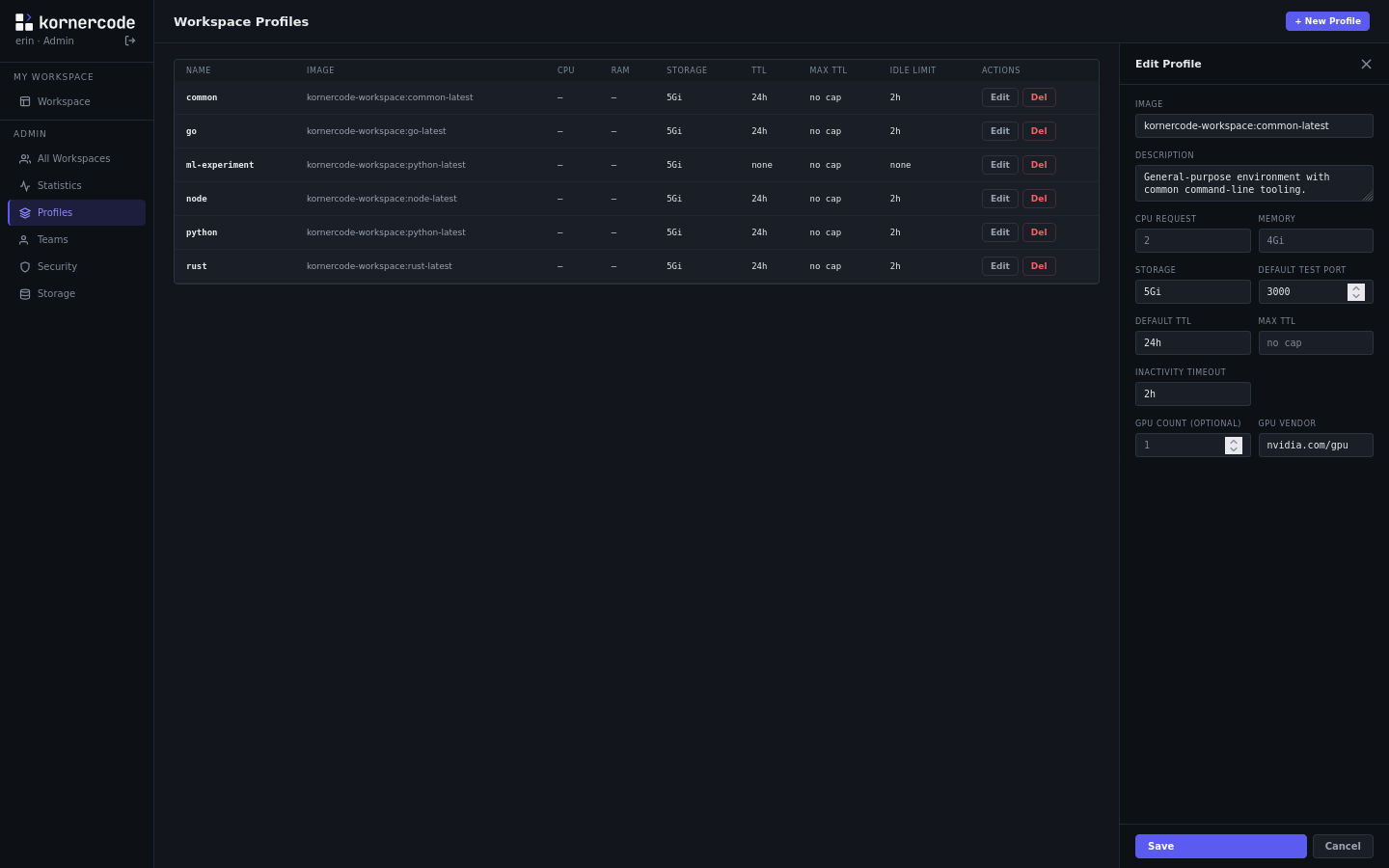
A profile is a workspace template: the image, CPU and memory requests, storage size, default test port, GPU, and lifetime settings:
| Field | Effect |
|---|---|
| Default TTL | Lifetime of a new workspace; empty means it never expires |
| Max TTL | Longest total lifetime a user can extend to; empty means no cap |
| Inactivity timeout | Idle time after which the workspace is deleted; empty means no idle limit |
The editor changes only the fields it shows; settings made in the manifest (extra environment variables, volumes, security contexts) are kept. Profiles with no CPU or memory request reserve nothing, which lets many workspaces share a node but gives no guarantees.
Long-running workspaces
Inactivity only counts use of the IDE and the test application. A training
run that lasts several days, with the IDE closed, therefore looks idle and
is deleted with its workspace. For such work, create a dedicated profile with
Default TTL, Max TTL and Inactivity timeout all empty: the
operator then never deletes its workspaces. Add it only to the teams that
need it (their allowedProfiles), and give it the GPU and resources the
runs require.
apiVersion: code.kornercloud.dev/v1alpha1
kind: WorkspaceProfile
metadata:
  name: ml-experiment
spec:
  image: registry.example.com/code-server:python
  storageSize: 50Gi
  gpu:
    count: 1
  # No defaultTTL, maxTTL or defaultInactivityTimeout: never deleted automatically.
A middle ground is a long TTL (for example 168h) without an inactivity
timeout: runs survive a closed IDE, and forgotten workspaces still go away
after a week. A Max TTL requires a positive TTL, so a zero TTL is rejected
on a capped profile.
Users switch by deleting their workspace and creating one on the new profile; their home volume is kept. The dashboard shows such workspaces as long-running and reminds their owners to delete them when they are done. Lifetime settings apply to existing workspaces too: adding a TTL to a long-running profile deletes, at once, every workspace already older than it.
Teams
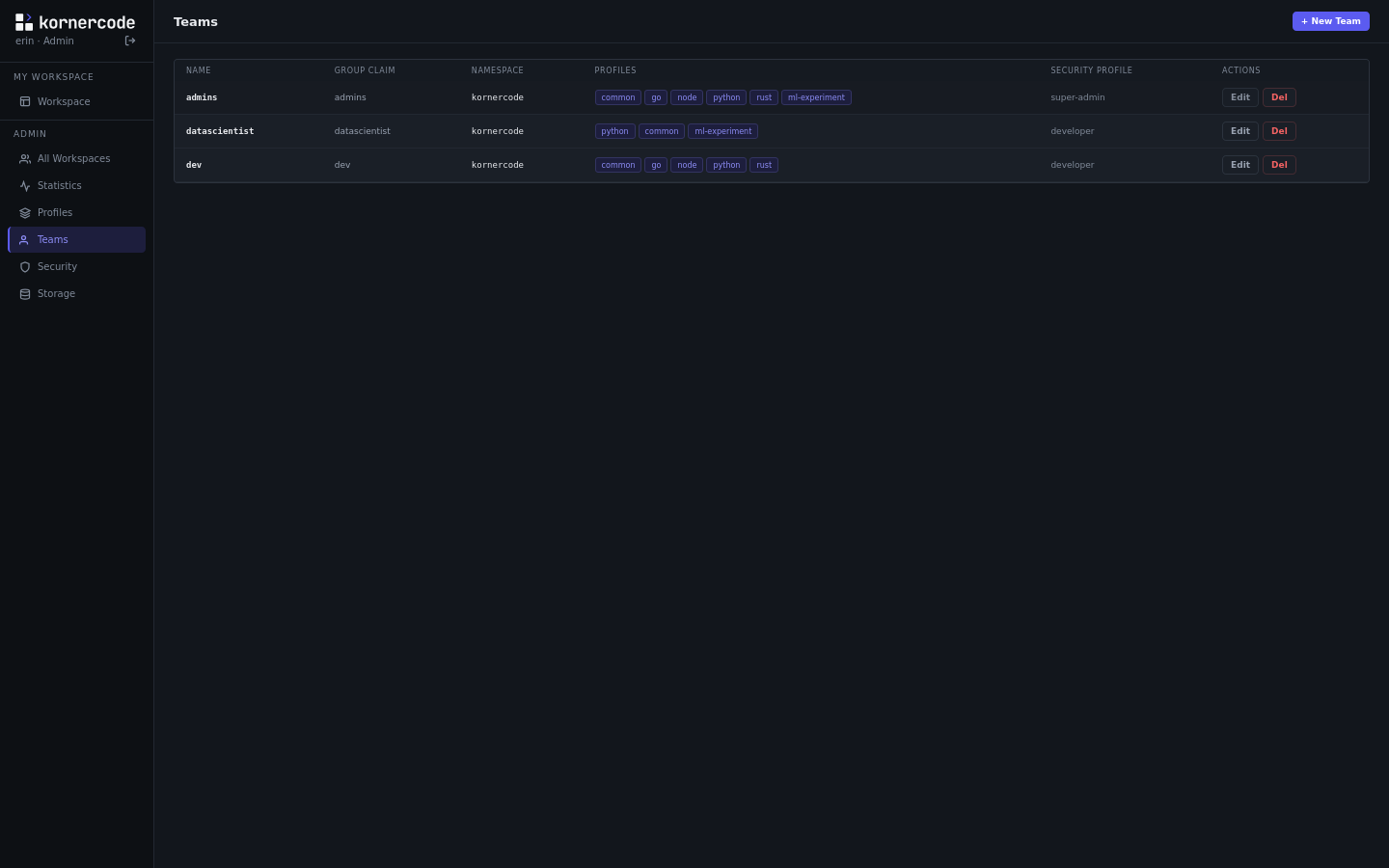
A team maps an OIDC group to a namespace and decides what its members get:
- Allowed profiles: the profiles members may choose.
- Security profile: the security posture of the team’s workspaces.
- Secret, config map and volume mounts: resources from the team namespace mounted into every workspace.
Several teams may share a namespace. A team cannot use a system namespace
(kube-system, default, …).
Restrictions
Restrictions make a team’s workspaces safer by switching features off. Every switch reads the same way: on always means more restricted. The rule is:
- The platform forces: the
restrictions:block in thekornercodechart values turns a restriction on for the whole install. - Teams add:
Team.spec.restrictionsturns a restriction on for one team. - The stricter wins: a restriction is in effect when the platform forces it or the team sets it. Nothing a team does turns off a platform-forced restriction.
All seven are off by default, so upgrading changes nothing. They are independent; none implies another.
| Restriction | Effect when on |
|---|---|
blockAdminIDEAccess | Admins can’t open the IDE of a workspace in this team |
disableTestEndpoint | The team’s workspaces have no test endpoint |
disableFileDownloads | code-server --disable-file-downloads |
disableFileUploads | code-server --disable-file-uploads |
disableProxy | code-server --disable-proxy (no /proxy/<port>/ or domain proxy) |
disableWorkspaceTrust | code-server --disable-workspace-trust (no Restricted Mode prompt) |
disableGettingStartedOverride | code-server --disable-getting-started-override (VS Code’s own welcome page) |
disableWorkspaceTrust and disableGettingStartedOverride are preferences
rather than security restrictions. They follow the same rule anyway.
Forcing a restriction for the whole platform
Set the keys in the chart values:
restrictions:
  blockAdminIDEAccess: true
  disableFileDownloads: true
An unknown key makes helm template and helm install fail, so a typo can’t
leave a setting off. The chart passes the true keys to the operator and the
gateway as PLATFORM_RESTRICTIONS, and a change rolls both pods on
helm upgrade. Either binary exits at start-up on an unknown name. See
Configuration.
Setting restrictions for one team
In the dashboard, open the Teams page, choose Edit Team and use the
Restrictions section. A switch the platform forces shows as on and locked, with
the tag “forced by platform”. You can also set them in the Team manifest, with
kubectl or GitOps:
apiVersion: code.kornercloud.dev/v1alpha1
kind: Team
metadata:
  name: payments
spec:
  restrictions:
    blockAdminIDEAccess: true
    disableTestEndpoint: true
    disableFileDownloads: true
    disableFileUploads: true
Keys you leave out are false. Members can’t change their own team’s restrictions.
A misspelled key under spec.restrictions is pruned by the CRD schema.
kubectl rejects it (strict field validation), but a GitOps tool that only
warns may drop the key silently, so check the applied object.
Admin access to a blocked team
With blockAdminIDEAccess on:
- The dashboard hides View IDE on that team’s workspaces and shows a one-line reason.
- The gateway refuses the View IDE ticket and every admin-view dev-host request with 403, so a session opened earlier stops working at its next request.
- Open admin IDE WebSocket connections are closed within about 5 seconds. A response already streaming over plain HTTP, such as a download, is not cut.
- Admins keep overview, logs, events, mounts, security, storage, restart, delete and extend TTL.
- Each refusal is logged in the gateway audit log as
AdminIDEAccessRefused. It is not a Kubernetes Event, and the owner sees nothing.
There is no admin path to another user’s test endpoint at all.
Test endpoint and proxy
With disableTestEndpoint on, the dashboard hides Test App and the Test URL
row, and the gateway refuses the test host with 403 for everyone, the owner
included. spec.testPort is still accepted but has no effect.
code-server’s port proxy serves any workspace port under the dev host
(/proxy/<port>/). Cutting off a workspace’s app completely therefore takes
both disableTestEndpoint and disableProxy.
Restarts
The operator appends the five code-server flags to each workspace’s args. Changing them, in the chart or in a Team, does not restart anything: running workspaces show “restart required”, and the change applies at each workspace’s next restart.
If the Team can’t be read
If the gateway or the operator can’t read a workspace’s Team, the request or the reconcile fails. There is no fallback. For the open WebSocket check this means the connection is closed.
Security profiles
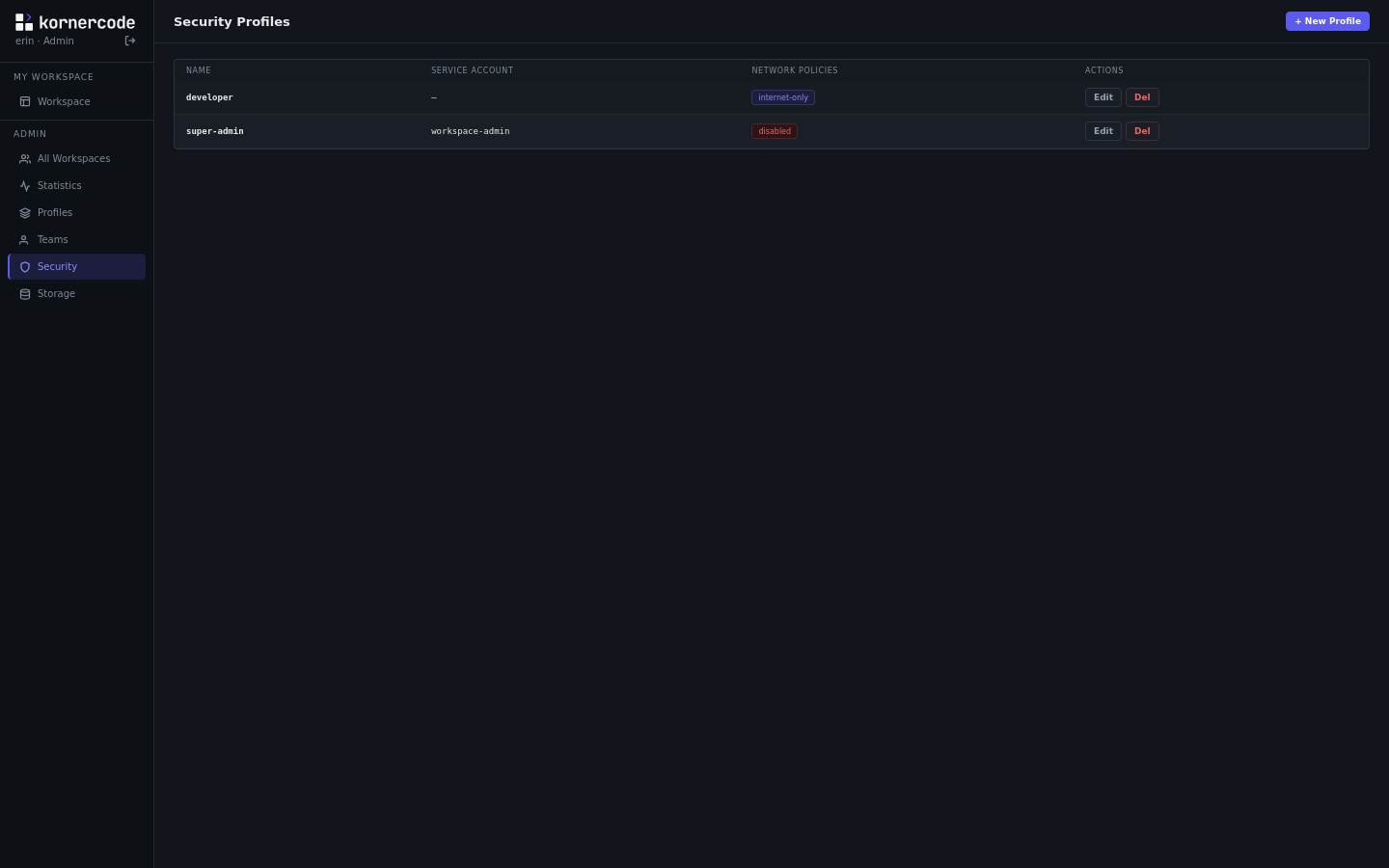
A security profile sets the service account, the pod and container security contexts, and the network policies applied to workspaces. Network policies are defined once by a cluster administrator in the operator namespace and referenced here by ID (see network isolation). A profile can disable network policy enforcement altogether; affected workspaces show it in red.
Storage
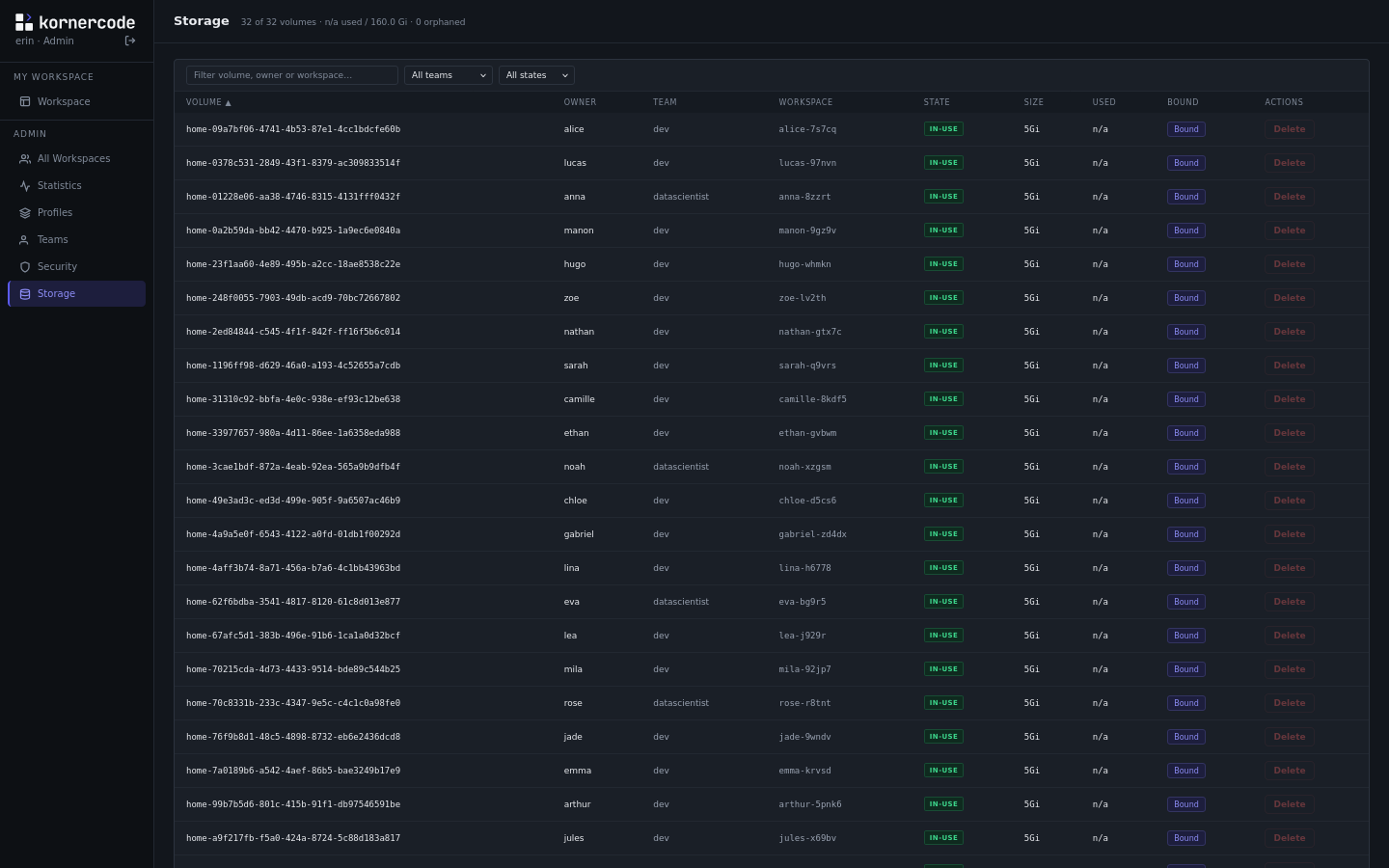
Every user has one home volume, mounted at /home/coder. It outlives
workspaces, so this page shows each one’s state:
| State | Meaning |
|---|---|
in-use | Mounted by a running workspace |
idle | The owner has a workspace, but its pod is not running |
orphaned | No workspace refers to it, or it is a home replaced by a restored volume |
Only volumes that are not in use can be deleted. Deleting a volume deletes the user’s files.
Migrating existing home directories
Users moving from another code-server platform can keep their home directories. You restore each volume into the cluster and label it with the user’s identity; the operator does the rest. Users who want to start fresh need nothing: without a label they get a new, empty home as usual.
The old home must come from a code-server image with the same user as the
images you run here (uid and gid 1000 for images built from
codercom/code-server), because everything a workspace keeps lives under
/home/coder: files, shell configuration, IDE settings and extensions. Files
should be owned by 1000:1000; see Image requirements.
1. Find the user’s ID
The owner ID is the user’s Keycloak sub in lowercase: the user ID shown in
the Keycloak admin console (Users, then the user, ID). For a user who
already has a workspace, it is also the workspace’s spec.owner:
kubectl get workspaces -A -o custom-columns=NAMESPACE:.metadata.namespace,NAME:.metadata.name,OWNER:.spec.owner2. Restore the volume into the team namespace
Restore the PersistentVolumeClaim with PX-Backup (or any backup tool) into the
namespace of the user’s team, the namespace their workspaces run in. The PVC
keeps whatever name it had; its size and storage class are used as restored,
and the profile’s storageSize does not apply to it. It must be mountable by
a single pod (ReadWriteOnce is enough).
If the volume comes from another kornercode installation, it may still carry
kornercode labels from there. Remove code.kornercloud.dev/owner before going
on: its value may be an old owner ID, and the operator refuses to adopt a
volume owned by anyone else. The other kornercode labels can stay; adoption sets
them.
kubectl -n <team-namespace> label pvc <pvc-name> code.kornercloud.dev/owner-3. Label it for the user
kubectl -n <team-namespace> label pvc <pvc-name> \
  code.kornercloud.dev/home-for=<owner-id>
That is the whole procedure. The operator does not watch PVC labels; it
looks for a labeled volume each time it reconciles one of the user’s
workspaces in that namespace. That happens when a workspace is created or
restarted, when you set the retry annotation shown below, and at the latest
when the operator re-runs the reconcile of a healthy workspace, which it does
every 12 hours. It then adopts the volume: it adds the labels
code.kornercloud.dev/owner=<owner-id>, code.kornercloud.dev/managed-by
and code.kornercloud.dev/volume=home, records the volume in the
workspace’s status.homePVCName, mounts it at /home/coder, and emits a
Normal event HomeVolumeAdopted on the workspace:
kubectl -n <team-namespace> get events --field-selector reason=HomeVolumeAdoptedThe home-for label stays on the volume. It still counts as a label for that
user, so to hand the same user yet another restored volume later, remove it
from the current home first (code.kornercloud.dev/home-for-); otherwise
the two labeled volumes conflict (see below). From then on the volume is an
ordinary home: it is reused by the user’s next workspaces,
appears on the Storage page, and is deleted from there.
Users who already have a home
A labeled volume always wins over the home a user already has: labeling it
means “give this user their old home back”. On adoption the previous home is
relabeled code.kornercloud.dev/volume=replaced-home and the event names it
(adopted restored home volume <name>, replacing home-<owner-id>). A replaced
home is never mounted again. It keeps its owner labels and shows as orphaned
on the Storage page; delete it there once the user no longer needs its
contents. While a replaced home named home-<owner-id> exists, the user
cannot get a fresh home under that name if the adopted volume is later
deleted.
A running workspace is never restarted for this. Its owner sees restart required in the dashboard once the operator has reconciled the workspace (at the latest at its 12-hour re-check), and the restored home is mounted at the next restart. A restart from the dashboard also picks up the label directly. To have the operator pick it up right away without a restart, re-run the volume step:
kubectl -n <team-namespace> annotate workspace <workspace-name> \
  code.kornercloud.dev/PVCReconciled=retry
Conflicts
The operator never guesses. In these cases the workspace does not become
Ready, and a Warning event ReconcilePVCFailed on the workspace says why:
| Situation | Event message | Fix |
|---|---|---|
| Several PVCs labeled for the same user, including a home adopted earlier that still carries the label | multiple PVCs labeled code.kornercloud.dev/home-for=<id>: [<names>] | Remove the label from all but one |
| The labeled PVC is owned by another user | PVC <name> is labeled code.kornercloud.dev/home-for=<id> but owned by <other-id> | Check the owner ID; on a volume from an older install, remove the stale owner label |
home-<id> carries another user’s labels | home-<id> is labeled <label>=<other-id>, not <id> or home-<id> exists with <label>=<value> but is not a home managed for <id> | Find out whose volume it is, then fix its labels or move it away |
Once fixed, the operator retries on its own. Retries back off exponentially, so after repeated failures it can take a few minutes.
Security rule
The labels are what grants a volume to a user, so anyone who can create or
label PersistentVolumeClaims in a team namespace can give themselves another
user’s files. Only administrators may hold that right. Never grant a
workspace ServiceAccount write access to PersistentVolumeClaims (create,
update or patch on persistentvolumeclaims) in a team namespace: users
reach it through
kubectl in their IDE. The same goes for any other identity a user controls.
The operator does not check this for you; see
Pod security. The
local development setup breaks this rule on purpose: its super-admin
workspaces use a ServiceAccount bound to cluster-admin in the team
namespace (hack/local-dev/workspace-admin). That is for local development
only; do not copy it into production.
Client certificates
With the client-certificate gate on, every connection to the dashboard, IDE and test addresses needs the person’s company client certificate, and the person signed in must be the certificate’s owner. A stolen session cookie is then useless without that person’s certificate. Break-glass, an administrator sign-in that works while Keycloak is down, is part of the same feature. The gate is off by default; off, kornercode asks for no certificate and offers no break-glass. The reasoning and its limits are in ADR 0015 and Authentication.
Turn the gate on
Put the company CA (roots and intermediates, PEM) in a Secret in the release namespace, under the key
ca.crt:kubectl -n kornercode create secret generic company-ca --from-file=ca.crt=company-ca.pemWith Traefik, give the main Ingress its own TLS Secret covering the dashboard, dev and test hosts (
gateway.ingress.tls.secretName), for example from cert-manager. The chart requires it: the TLS option uses strict SNI, which ignores the ingress default certificate.Check that the identity claim holds the same value as the certificate CN (see Identity and groups claims).
Set the values and upgrade:
clientCertificates:
  enabled: true
  companyCA:
    existingSecret: company-ca
  headerDialect: traefik
gateway:
  ingress:
    tls:
      secretName: kornercode-tls
The chart needs cert-manager: it issues the ingress client certificate
kornercode-ingress-client from kornercode-internal-ca-issuer, even when
mtls.enabled is false. With the gate on, the main Ingress routes all three
hosts to the Service kornercode-gateway-client-cert (port 8444), and the
gateway serves them only there; its plain ports answer health checks and
nothing else. Every value is listed in
Configuration.
The chart refuses to render, naming the value, when the company CA Secret is
missing, when the dialect or revocation policy is unknown, when
gateway.ingress.tls is off or has no secretName with the traefik
dialect, or when breakGlass.mapping is set without the gate.
Turning the gate on signs out sessions opened before it, quietly: the next
page load shows the sign-in page. Scripts that call the dashboard API with
POST, PUT, PATCH or DELETE must send an Origin header equal to the
dashboard origin, gate on or off (see
Cross-site request check);
with the gate on they also need a client certificate.
Identity and groups claims
At sign-in the gateway compares the certificate’s subject CN with a claim of
the ID token, without regard to case: gateway.oidc.identityClaim, default
preferred_username. If they differ, or the claim is missing or empty, the
sign-in is refused. Pick the claim that holds the same value as the CN. In
the client’s Keycloak, for example, certificates carry the user’s hex ID as
the CN (a12345) and preferred_username holds that same ID, so the default
works. If your CNs are e-mail addresses, set identityClaim: email.
Teams and admin rights come from gateway.oidc.groupsClaim, default groups,
gate on or off. It must be a top-level claim holding a list of strings or a
single string. Group names are used as they come: a provider sending full
paths (/kornercode-admins) needs gateway.adminGroups and each Team’s
spec.groupClaim written the same way.
gateway:
  oidc:
    identityClaim: preferred_username
    groupsClaim: groups
Revocation
The gateway checks every request’s certificate against the CRLs it names
(http:// and https:// addresses only; others, such as ldap://, are
skipped) and caches each CRL until its next update. It needs network access to
the CRL hosts; clientCertificates.revocation.allowedHosts limits which hosts
it contacts. A CRL that fails its integrity checks always refuses.
When no CRL can be fetched and the cached one has lapsed,
clientCertificates.revocation.onUnavailable decides, for every user and
every request, break-glass included:
deny(the default) refuses the request (revocation_unavailable). An outage of the company’s CRL servers that outlasts the cached lists locks everyone out, administrators included, and break-glass does not help.allowlets the request through and audits it asrevocation: unchecked, once per person per minute.
A revoked certificate is refused on its next request, and requests that stay
open (IDE connections, log streams) are closed within 30 seconds of the
gateway learning of the revocation, which depends on when it next fetches the
CRL (at most every clientCertificates.revocation.minRefresh).
Break-glass login
Break-glass lets an administrator sign in with the client certificate alone, without contacting Keycloak. It needs the gate and at least one mapping entry:
breakGlass:
  sessionMaxLifetimeSeconds: 28800
  mapping:
    - cn: "a12345"
      sub: 11111111-2222-4333-8444-555555555555
      username: jdoe
      email: jdoe@example.org
      groups: [kornercode-admins]
With a mapping, the sign-in page and the “identity provider is unavailable”
page show a second button, Administrator sign-in without Keycloak. It
works at any time, not only during an outage, and is always an explicit
click: presenting a certificate never signs anyone in. The certificate must be
accepted by the gate and its CN must be in the mapping; the session then
belongs to the mapped identity. A banner on every page says “Break-glass
session. You signed in with your client certificate, not Keycloak. Sign in
normally once Keycloak is back.” The session uses the normal session cookie
and lasts at most breakGlass.sessionMaxLifetimeSeconds (8 hours by
default). Logout returns to the dashboard’s sign-in page without contacting
Keycloak.
While Keycloak is unreachable the gateway keeps running and stays Ready, and existing sessions keep working.
The mapping
Each entry binds one certificate CN to one identity. cn, sub and
username are required; email and groups are optional.
cnis matched exactly against the certificate’s subject CN: case-sensitive, no wildcards, no trimming. Later requests of the session need the exact CN too.subis the person’s Keycloak user ID, so the session owns the same workspace and home volume as a normal sign-in.groupsdecides which Team the session resolves to, as at a normal sign-in.- The mapping is also the allow-list, and every listed person is an
administrator whatever their
groupssay. List only people who should have full admin rights. - Values must be quoted strings. A CN such as
004521that YAML reads as a number is refused; on the command line use--set-string.
Changing who can sign in
| Goal | Action |
|---|---|
| Add or remove a break-glass administrator | Edit breakGlass.mapping and run helm upgrade. A checksum annotation restarts the gateway, so the change applies at once. |
| Revoke one certificate | Have the company CA revoke it and publish the CRL. The gateway re-reads CRLs at most every clientCertificates.revocation.minRefresh. For break-glass, remove the CN from the mapping as well for an immediate effect. |
| Rotate the company CA | Update the Secret, then restart the gateway (kubectl -n kornercode rollout restart deploy/kornercode-gateway). The gateway does not watch the Secret. |
| End every session now | Rotate SESSION_SECRET (procedure). |
Revocation applies to every request on every host, bridged IDE and test
sessions included. The gateway reads the mapping at start-up, and the
checksum annotation restarts it whenever helm upgrade changes the mapping.
Once it runs with the new mapping, removing a CN, or editing its entry
(sub, username, email or groups), ends that administrator’s
break-glass sessions at their next request, on every host, bridged IDE and
test sessions included: the browser is signed out and can sign in again with
the current entry. Emptying the mapping turns break-glass off and ends every
break-glass session the same way. A mapping ConfigMap edited by hand, outside
the chart, takes effect only after a manual restart
(kubectl -n kornercode rollout restart deploy/kornercode-gateway).
What users see
Most problems with the certificate itself end at the ingress, before the
gateway sees the request: without a certificate, or with one the company CA
did not issue or that has expired, the browser shows a connection error. The
gateway’s checks show a “Certificate refused” page naming the reason (API
calls get 403 with the reason in JSON):
| Reason | Cause | What to do |
|---|---|---|
certificate_revoked | The certificate is on its CRL | Get a new certificate |
revocation_unavailable | No CRL could be fetched (with deny), or a CRL failed its checks | Restore access to the CRL hosts; see Revocation |
certificate_expired, certificate_untrusted | Outside its validity dates, or not issued by the company CA for client authentication | Usually caught by the ingress first; get a valid certificate |
certificate_cn_ambiguous | The certificate has no CN or more than one | Get a certificate with exactly one CN |
no_certificate, certificate_malformed, certificate_header_ambiguous | The ingress forwarded no certificate, an unreadable header, or another dialect’s header too | Ingress configuration; see Other ingresses |
identity_claim_missing | At sign-in, the ID token has no identity claim | Set gateway.oidc.identityClaim, or add the claim in Keycloak |
certificate_identity_mismatch | At sign-in, the identity claim differs from the CN: the person chose someone else’s certificate, signed in as someone else, or Keycloak still held the previous person’s sign-in | The gateway ends that Keycloak session and the sign-in page says so; sign in with the account that matches the certificate. Browsers typically remember the chosen certificate until they restart. |
certificate_session_mismatch | The session belongs to another CN, typically a browser that kept the previous person’s session cookie across a restart | The session is cleared. A page load goes straight to the sign-in page; an API call or form post gets 403 |
cn_not_allowed | The break-glass button was used with a certificate whose CN is not in the mapping | Add the CN to the mapping, or sign in normally |
A session opened before the gate was turned on is signed out without a
refusal page. A request from another site that tries to change something gets
403 with reason cross_origin; it is logged as a gateway warning, not
audited.
Audit
Certificate refusals are audit entries with the action auth.certificate,
outcome: failure, the reason, and the certificate’s CN, serial and issuer,
the ingress address and, when present, X-Forwarded-For. With
onUnavailable: allow, requests let through unchecked are entries with
outcome: success and revocation: unchecked. Break-glass sign-ins and
cn_not_allowed refusals use the action auth.break_glass.login. Repeated
entries for the same CN and reason are written once a minute. Admin actions
in a break-glass session carry breakGlass: "true" in their audit metadata;
the AdminOpenedIDE Kubernetes Event does not mention break-glass. See
audit pipeline.
Other ingresses (F5, nginx, Envoy)
The chart renders the Traefik objects (TLS option kornercode-client-cert,
ServersTransport kornercode-gateway-client-cert, middlewares
kornercode-client-cert-strip and kornercode-client-cert-pass, and the
annotations on the main Ingress) only with headerDialect: traefik. For
another ingress controller set clientCertificates.headerDialect, which the
chart passes to the gateway, and configure these four things on the ingress
yourself for the dashboard, dev and test hosts:
Require and verify the client certificate against the company CA.
Remove any certificate header the client sent, unconditionally: the headers of all three dialects in the table below.
Insert the full client certificate in the dialect’s header:
headerDialectHeader Content traefikX-Forwarded-Tls-Client-Certbase64 DER of each certificate (PEM body without armour or newlines), comma-separated, leaf first ( passTLSClientCertwithpem: true); not URL-unescapednginxSsl-Client-Escaped-CertURL-encoded PEM ( $ssl_client_escaped_cert)envoy-xfccX-Forwarded-Client-CertXFCC CertorChainfieldsConnect to the Service
kornercode-gateway-client-cert(port8444) over TLS, present a client certificate from kornercode’s internal CA with the DNS SANkornercode-ingressand the clientAuth extended key usage (the chart creates one in the Secretkornercode-ingress-client), and verify the gateway’s certificate against the internal CA with server namekornercode-gateway.
The chart still points the main Ingress at that Service, but the
client-certificate verification, the header and the backend connection are
yours to configure. The gateway refuses any request that also carries the
certificate header of a dialect other than the configured one
(certificate_header_ambiguous), so remove all three headers in step 2. That
check catches a dialect mismatch only if the ingress sets its header on every
request.
With Envoy (envoy-xfcc), set forward_client_cert_details: SANITIZE_SET
and require the client certificate on the listener. The gateway judges the
last XFCC element, which is safe only when Envoy sets the header on every
request: with APPEND_FORWARD or SANITIZE alone, a request on which Envoy
writes nothing carries the client’s own header.
Without step 4 the gateway refuses the connection; without step 2 a visitor could present a certificate they merely copied.
With Traefik, also note:
- The ServersTransport uses
rootCAs, which needs a Traefik v3 release that has the field. An older Traefik trusts no extra CA and fails closed. - The TLS option and middlewares attach to the main Ingress, on every Traefik entrypoint it uses.
clientCertificates.networkPolicyadmits only the ingress namespace (clientCertificates.networkPolicy.ingressNamespace, defaulttraefik) to port8444.
For a local cluster see the client-certificate section of hack/local-dev/README.md.
Configuration changes and restarts
Changing a profile, team or security profile never restarts running workspaces: users would lose open terminals and running processes. Affected workspaces are marked restart required instead (the UPDATE badge here, a banner for the owner), and the change applies when the owner restarts or the workspace is recreated. The reasoning is in ADR 0008.
Monitoring the platform
- Workspace and team resources report their state in
status.conditions;kubectl get workspaces -Ashows phase and age. - The operator exposes Prometheus metrics; the chart can create a ServiceMonitor.
- Every admin API call is logged with the caller’s identity; see audit pipeline.