User guide
This guide is for developers using kornercode. Administrators: see the admin guide.
Signing in
Open the dashboard address your administrator gave you and sign in with your organization account. kornercode places you in a team based on your groups; the team decides which workspace profiles you can use, what is mounted into your workspace and what it may reach on the network.
If the sign-in service is down, the dashboard says “The identity provider is unavailable” instead of showing the sign-in page. If you are already signed in, you can keep working: your session does not depend on it. Otherwise try again later.
Client certificate
Your platform may also require your company client certificate. The browser then asks you to choose a certificate when you open the dashboard, the IDE or your test application. Choose your own: you must then sign in with the account that belongs to it, and every later request must come with the same certificate. Without a valid certificate the browser usually cannot connect at all.
If you sign in with an account that does not belong to your certificate, the sign-in is refused and you are signed out of the identity provider: the sign-in page says so, and you can sign in again with your own account. If the browser still holds someone else’s kornercode session (for example after a restart with another certificate), kornercode clears it and shows the sign-in page. Browsers typically remember the chosen certificate until they restart.
If kornercode refuses your certificate itself, it shows a “Certificate refused” page with a reason:
certificate_revokedorcertificate_expired: ask for a new certificate.revocation_unavailable: kornercode cannot check your certificate right now. Try again later, and tell your administrator if it persists.
An open IDE or log view is disconnected when your certificate expires or is revoked, or when your sign-in reaches its maximum age. If an administrator turns the certificate requirement on while you are signed in, you are signed out once and sign in again as usual.
Creating a workspace
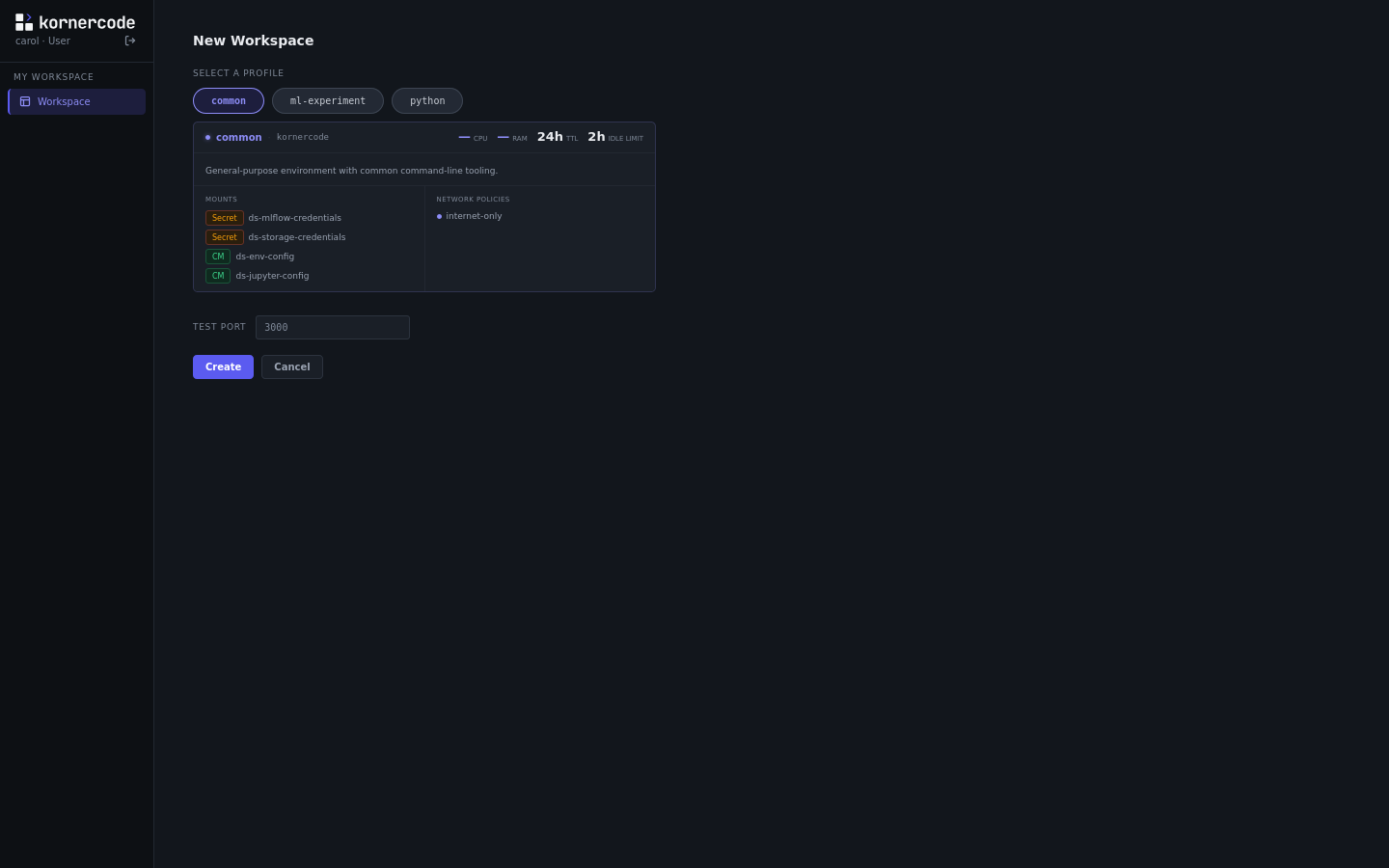
Choose + Create Workspace, pick a profile and, if your application listens on a port other than the profile’s default, set the test port. You can have one workspace at a time. The workspace is usually ready within a minute; the dashboard updates on its own.
Your workspace
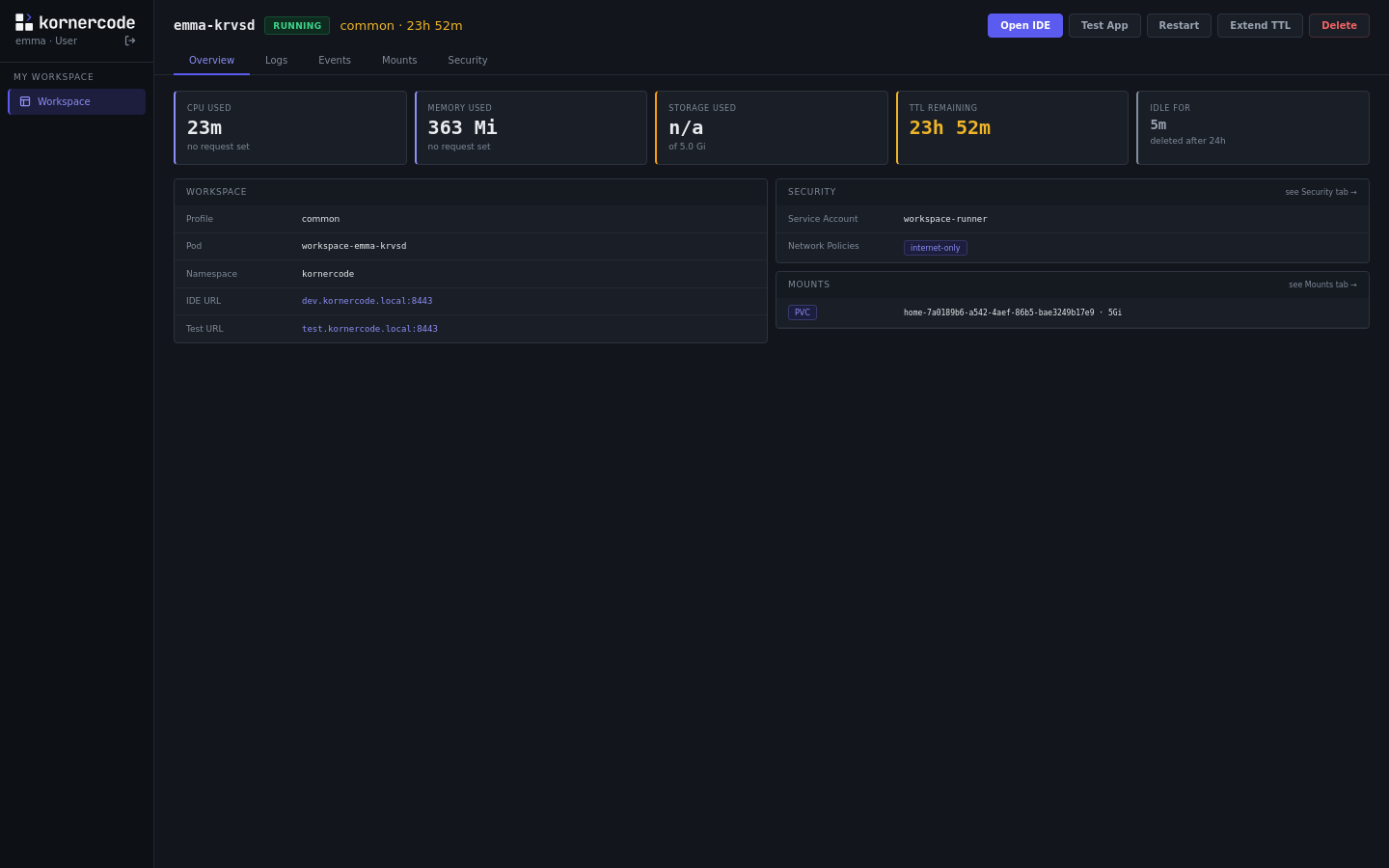
The header shows the workspace’s state, its profile and how long it has left. The tiles show what the workspace uses right now against what it reserves (CPU, memory, storage), how long it may still live, and how long it has been idle. Usage figures appear when the platform collects metrics; otherwise the tiles show the profile’s reservations.
| Button | What it does |
|---|---|
| Open IDE | Opens VS Code in a new browser tab |
| Test App | Opens the application running in your workspace (absent if your team disables the test endpoint) |
| Restart | Replaces the workspace’s container; your files are kept |
| Extend TTL | Gives the workspace more time, up to the profile’s maximum |
| Delete | Deletes the workspace; your files are kept for next time |
The IDE
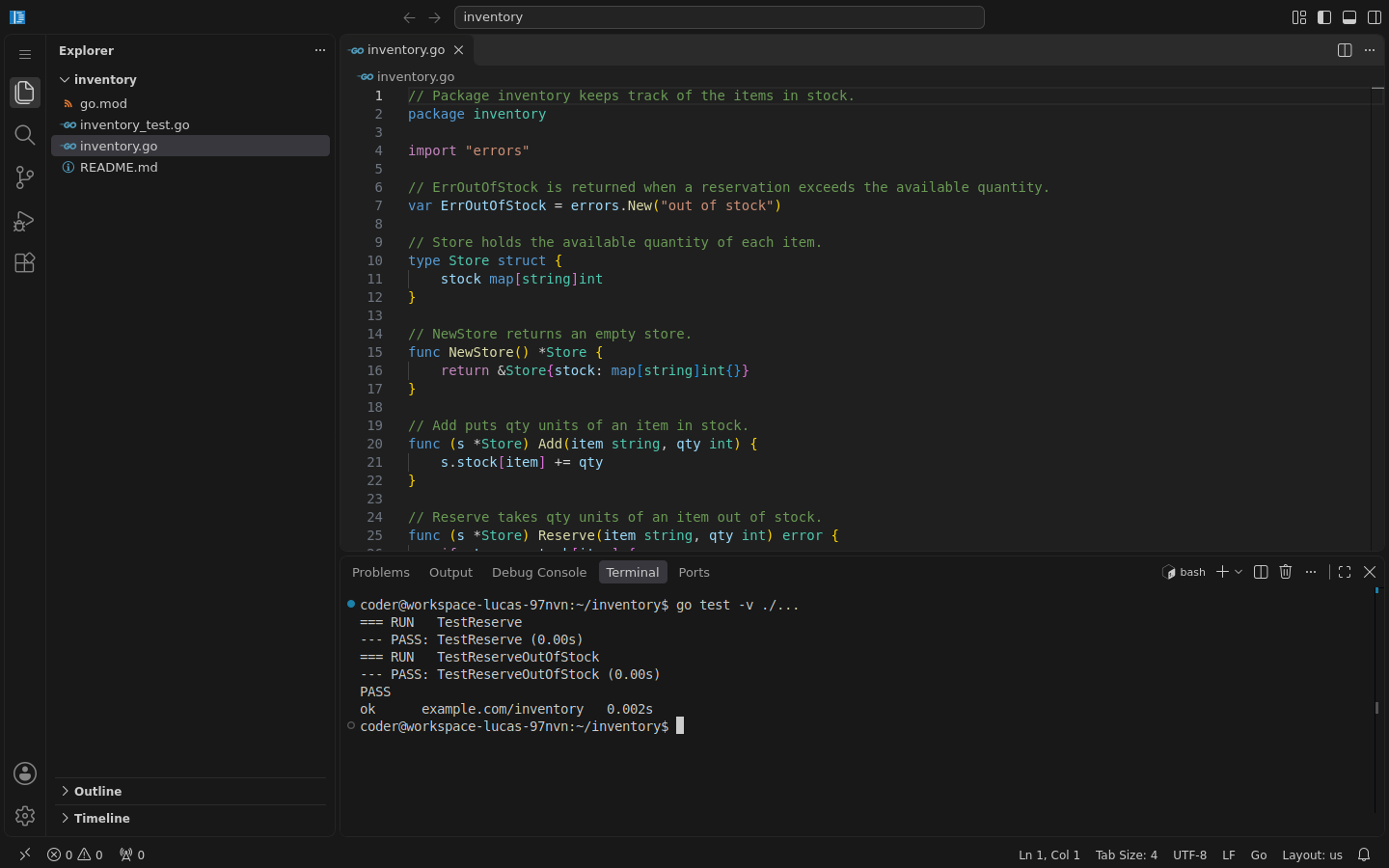
The IDE is code-server: VS Code running in your workspace and displayed in the browser. Terminals, extensions and the debugger run inside the workspace.
Your home directory, /home/coder, persists across workspaces. It holds your
files and repositories, your shell configuration, and the IDE’s settings and
installed extensions. Everything else is reset when the workspace is restarted
or recreated, so tools you install with pip install --user, npm or go install survive only when they install under your home directory. You cannot
install system packages: the workspace runs as the non-root user coder.
If you used an earlier platform, an administrator can restore your old home directory and attach it to your account. It replaces the home you have here on your next workspace start; if a workspace is running, the dashboard asks you to restart it. Your previous home is kept, not deleted, until an administrator deletes it.
Restrictions
Your team, or the whole platform, may switch some features off. In the IDE
this can mean that you cannot download or upload files through the file
explorer, that code-server’s port preview (/proxy/<port>/) is off, or that
VS Code shows no Restricted Mode prompt. A team without a test endpoint has no
Test App button or Test URL. Ask your administrator what applies to your
team.
Previewing your application
Run your application in the workspace and listen on 0.0.0.0 at the test
port (3000 unless your profile or workspace says otherwise), then use
Test App. The application is served at the test address with the same
sign-in as the dashboard.
Logs, events, mounts and security
The tabs below the header show:
- Logs: the IDE server’s output, live.
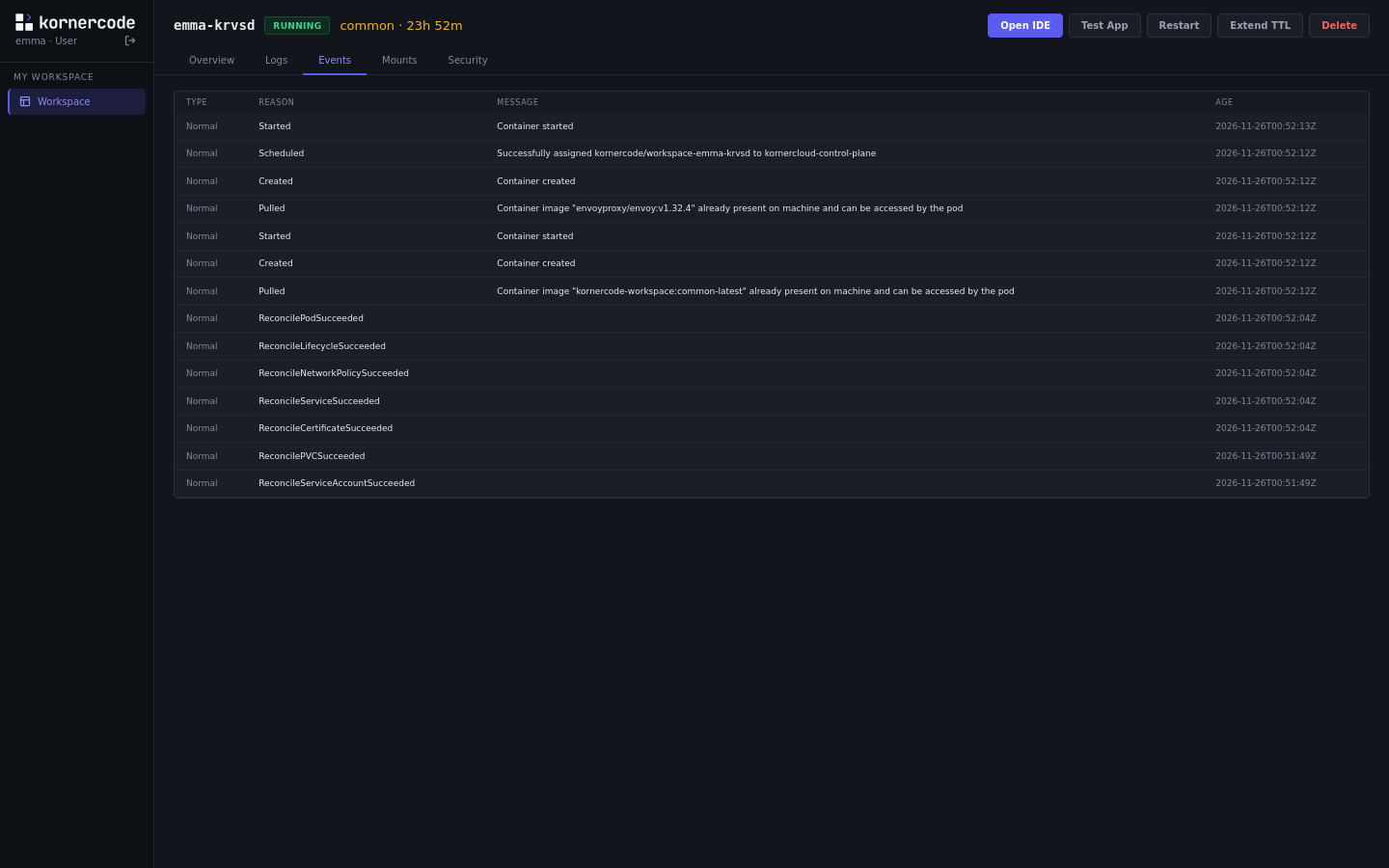
- Events: what happened to the workspace and when. This includes creation, restarts, TTL extensions and any administrator opening your IDE.
- Mounts: your volumes, and the secrets, configuration maps and shared volumes your team provides.
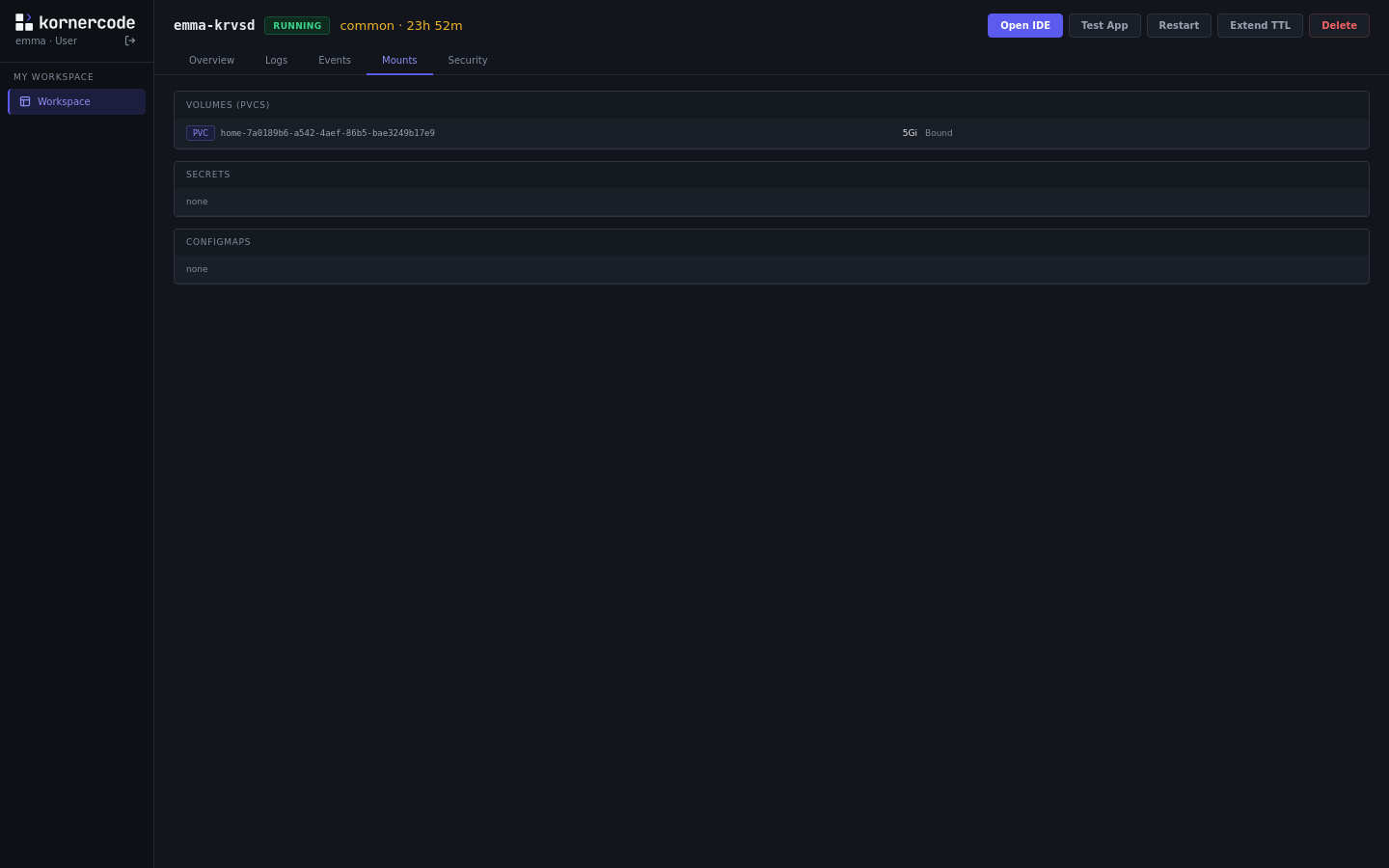
- Security: the service account, the security context your workspace runs with, and the network policies that apply to it.
Lifetime
A workspace is deleted automatically when either limit is reached:
- TTL: a fixed lifetime from creation (shown in the header). Use Extend TTL to set a longer total lifetime, up to the maximum your profile allows.
- Inactivity: no use of the IDE or the test application for a while (the idle time is shown on the workspace page).
Your files in /home/coder are kept either way; create a new
workspace to continue.
Deletion stops everything running in the workspace. For work that runs for
days with the IDE closed, such as training a model, use a long-running
profile if your team offers one (it shows none for TTL and idle limit when
you create the workspace). Such a workspace is never deleted automatically,
so delete it yourself when the run is done.
Updates and restarts
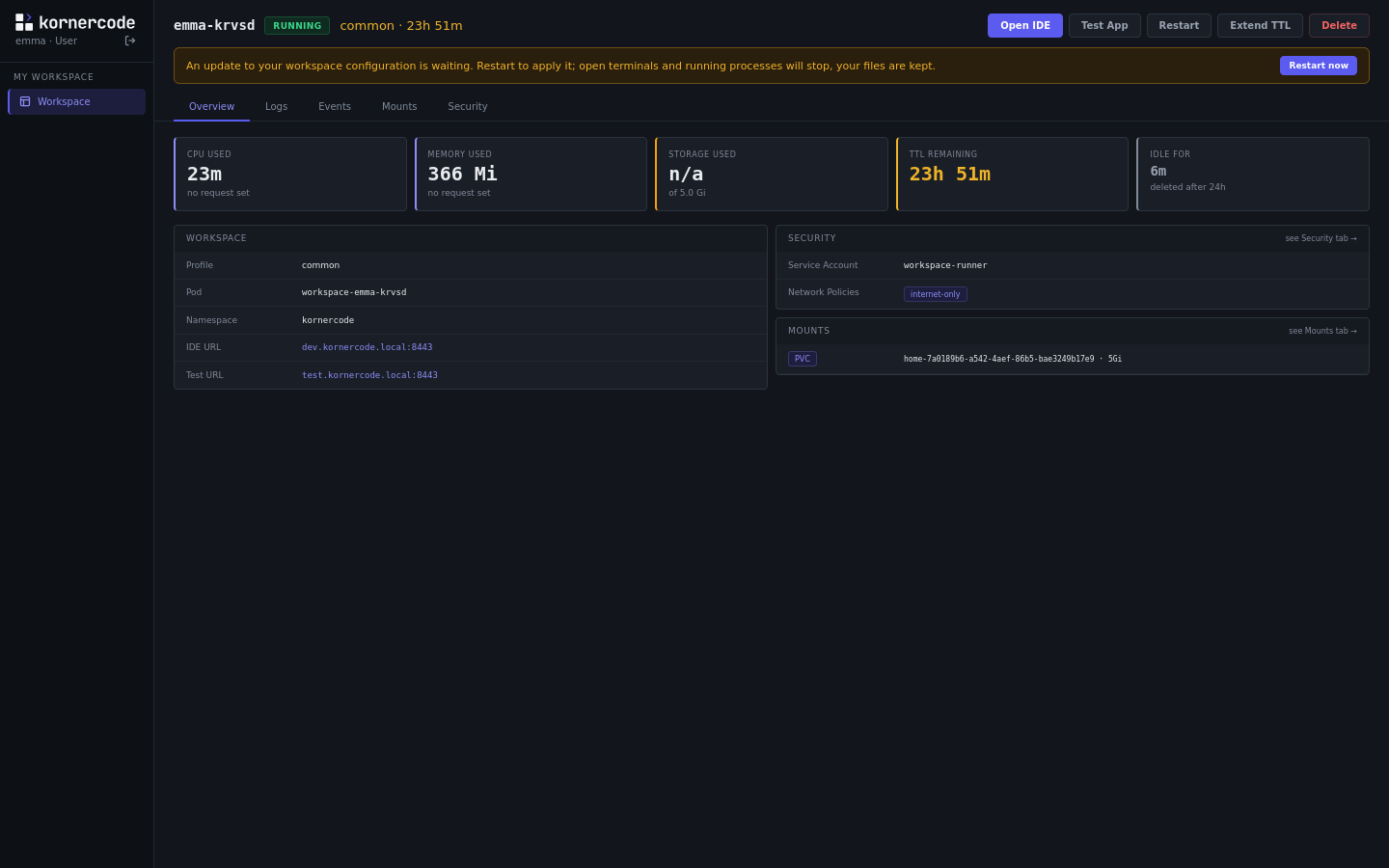
When an administrator changes your profile, your team or its security settings, your running workspace keeps its current configuration so that nothing interrupts your work. A banner tells you an update is waiting. Choose Restart now when it suits you: open terminals and running processes stop, your files are kept, and the workspace comes back with the new configuration. While the old container stops, the status reads RESTARTING and the Restart button is disabled; it then reads STARTING, and Open IDE comes back once the new container is ready, usually within a few seconds.
If the workspace’s container stops unexpectedly, kornercode replaces it on its own.
Administrator access
Administrators can open your IDE to help you, unless your team blocks administrator access. Each time they do, an event naming them appears in your Events tab.